Wednesday, April 10, 2013

Download Samsung Galaxy S4 Stock Wallpapers

on · Filled Under: · 1 comment
Samsung Galaxy S4 was introduced on the Unpacked event at America. Currently its the Samsung's Latest flagship phone with 8-Core CPU, 5" Super AMOLED touch screen, Android's latest Jellybean (4.2.2), 13 Megapixels camera, with Touchwiz nature UX in it, which is jam-packed with out of the box features like Smart stay, Multi-window, and much more.


As you can see, the Samsung Galaxy S4 stock wallpapers are pretty awesome, you may also want them for your device or tablet. Today we are here with Samsung Galaxy S4 stock HD wallpapers which you can download right now and use them on your PC desktop wallpaper, Smartphone or tablet too!

Also Read: Top 10 Browsers

So here is the Download Link:


Download Samsung Galaxy S4 Stock Wallpapers

If you want to download few selected one's, then right click on any of the wallpaper and choose Save Image As.

Thanks to: SamMobile for download link

Stock Wallpaper 01

Stock Wallpaper 02

Stock Wallpaper 03

Stock Wallpaper 04

Stock Wallpaper 05

Stock Wallpaper 06

Stock Wallpaper 07

I hope you'll like the above HD samsung galaxy s4 wallpapers.

If you want any other wallpapers, then you can request us from Request Zone.

How to Install CWM Recovery on Samsung Galaxy Grand GT-I9082

on · Filled Under: · Leave a Comment
Samsung Galaxy Grand is an affordable 5" WVGA Capacitive LCD display. It comes with Dual-core 1.2 Ghz Cortex A-9 processor with Broadcom VideoCore IV GPU. Galaxy Grand comes with two color variants - white and black. Best thing is that Galaxy Grand comes with Multiwindow feature to let you do two tasks at a time very smoothly. It has 8MP auto-focus rear camera with HD video recording and 2 MP front camera for quality video calling.


Today I'm going to show you How to Install CWM Recovery on Samsung Galaxy Grand GT-I9082. After installing CWM recovery you can install custom roms and mods or root your samsung galaxy grand. You can take backup with one single click and much more features which you don't get in the normal recovery!

Important things to do before processing:

  1. Backup everything like apps, contacts, messages, call logs, before you begin. 
  2. Install Samsung USB Drivers properly before you begin, because if the computer cannot detect your device, then your device may be get damaged.
  3. Charge it at least 75% so you don't run out of battery!

Disclaimer

Porting CWM based recovery will void manufacture warranty of device.  If followed incorrectly, then rooting may brick your device. Then your device becomes nothing, but a brick in your pocket. AllTechnoNews is not responsible for any damage occurs to your device. So try it at your own risk. ;-)

Downloading Required Files for Installing CWM recovery on Galaxy Grand

1. Odin3_v3.04.zip (The tool which will Install CWM on your device)
2. CWM-touch_i9082_chotu.tar.zip (The CWM Recovery File)

How to Install CWM Recovery on Samsung Galaxy Grand GT-I9082

1. Extract Odin3_v3.04.zip and CWM-touch_i9082_chotu.tar.zip on your desktop.
2. After extracting, you'll have Folder named Odin3_v3.04 and CWM-touch_i9082_chotu.tar.md5 file.
3. Open the Odin3_v3.04 folder and run Odin3 v3.04.exe 
4. Click on PDA button and choose CWM-touch_i9082_chotu.tar.md5 file from the desktop and make sure Auto Reboot and F. Reset time are checked after selecting PDA.
5. Now Shut Down your device and press and hold Volume Down + Power + Home button to get into downloading mode. Release them when you see the logo on screen.
6. Now connect your Device with USB to your pc.
7. After connecting, in Odin, the ID:COM field should light up with blue color, it means your device is detected.
8. Now click on start and wait till your device reboots. Once it reboots, CWM recovery is installed now! You can access it by, Shutting off your device and then pressing and holding Volume Up + Power + Home button.

If you have any problems with installing CWM recovery on Samsung Galaxy Grand, then feel free to ask us in comments.

Do you know which is the best android phones, find out here, the Best Android Phones.

If you want tutorial to install CWM recovery on any other device, then tell us via our Request Zone.

How to Root Samsung Galaxy Grand GT-I9082

If you want to your device, then follow our guide to root Samsung Galaxy Grand.

Enjoy!

How to Root Samsung Galaxy Grand GT-I9082

on · Filled Under: · Leave a Comment
We have already published a guide to install CWM Recovery on Samsung Galaxy Grand. So with CWM recovery, its so easy to root the device. Today we'll show you how to root Samsung Galaxy Grand GT-I9082.

Follow the instructions properly and you'll get your device rooted within minutes, after that you can enjoy custom roms, install mods, install apps which are only made for rooted device, in other words, you'll get full access to your device.

Disclaimer

Rooting your device will void manufacture warranty of device. You can re-gain the warranty by un-rooting it, if there are any guides available to un-root. If followed incorrectly, then rooting may brick your device. Then your device becomes nothing, but a brick in your pocket. AllTechnoNews is not responsible for any damage occurs to your device. So try rooting at your own risk. After its rooted, its fun playing with device ;-)

Important things to remember before processing:

1. You will need CWM recovery installed on your device to root it, follow our guide to install CWM recovery on galaxy grand before you root it.
2. Charge your device's battery at least 75%.
3. Remember, rooting will void your warranty!

Required Files to Download for Rooting Galaxy Grand

1.  Fix-Recovery.zip
2.  UPDATE-SuperSU-v1.10.zip

How to Root Samsung Galaxy Grand GT-I9082

1. Connect your device to pc and copy the Fix-Recovery.zip and UPDATE-SuperSU-v1.10.zip to your phone's sd card.
2. Shut down the device and go to CWM recovery via pressing and holding Volume Up + Home + Power Button.
3. Once you enter in CWM recovery, release the buttons, and choose install zip from sdcard and then choose zip from sdcard and navigate to Fix-Recovery.zip and press Home Button.
4. Return to Main Menu and repeat the proccess with UPDATE-SuperSU-v1.10.zip file.
5. Go to main menu and choose Restart System Now.
6. Wait till it restarts your device.

Congratulations, Your device is rooted now.
Still, if you want to confirm, then go to menu, and find app "SuperSU", if you find it, then you have rooted your device successfully. Have fun! 

Do you want to know which are the Best Android Phones? Find out Best Android Phones.

If you have any problems with Samsung Galaxy Grand GT-I9082, then feel free to ask us in comments.

If you want tutorial on how to root any other android device, then tell us via our Request Zone.

Guides to Root Other Devices:

How to Root Micromax Canvas 2 A110.
How to Root Samsung Galaxy Y.

Monday, April 8, 2013

Entering in Blogging Cage Guest Blogging Contest!

on · Filled Under: · Leave a Comment
Hello Readers,

Today I'm feeling so proud to enter in a guest blogging contest held by Blogging Cage.

Here is my contest entry : 5 Proved Ways to Increase Reader Engagement on Your Blog

In this blog post, I've described 5 ways using what you can increase the reader engagement on your blog and make them like you.

I hope you will like the first blog post ever written by me. :)


I also want to thank Kulwant Nagi, for creating such a great contest!

In this contest, I need your help to win.

Winner is decided by the highest point count!
Points distribution is somelike this:
  1. 1 Like – 2 points.
  2. 1 Tweet – 5 points.
  3. 1 Stumbleupon – 5 points.
  4. 1 Google Plus – 10 Points.
  5. 1 Comment – 20 Points.
So, as you can see, G+ and Comment has the most points, so please click on G+ and do comment on my contest entry to help me win.

Thank you!

Here are the sponsors of this contest:

Gold Sponsor

wpmudev-logo

Silver Sponsors

logo
india-exam
logo

WP Kube - WordPress resource site
bloggers-passion-logo
SmartBloggerz-Logo
Blokube-5
swiftthemes
logo (1)


Thank you for the above persons for sponsoring contest too!

If you wish to enter in this contest, then do this to enter in the contest:
  1. Register an account on our blog as contributor.
  2. Write a unique article with atleast 600 words.
  3. You account must have gravatar enabled.
  4. Article must be well-written and well-formatted.
  5. Specify at the start of article and write, “This article is for guest blogging contest.
  6. Submit the article for Review, and as soon as it gets published, do you best to get highest points and win!
Have a nice day!

Monday, March 11, 2013

How to Root Micromax A110 Canvas 2

on · Filled Under: · 7 comments
Today I'll show you how to root Micromax A110 Canvas 2. If you wish to un-root later, then un-rooting guide is also available.

Rooting Micromax A110 is very easy task, just follow our instructions and you will have your device rooted easily.
How to Root Micromax A110

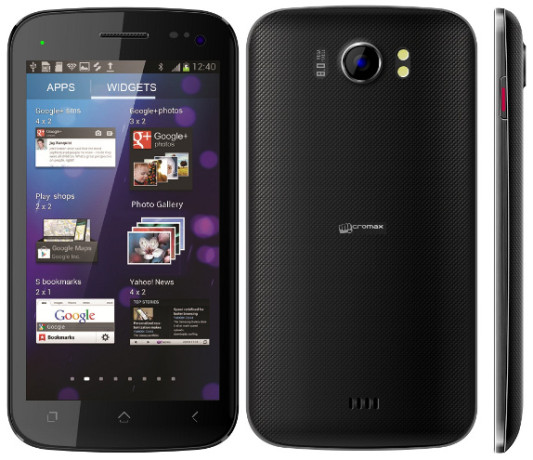
Micromax A110 Canvas 2 was a flagship of Micromax which has 5" display with android ICS (4.0.4).  It has a dual flash 8 MP camera with great video quality too. Micromax A110 Canvas 2 has an 1Ghz Dual Core processor with Mediatek chipset and PowerVR SGX531 GPU which gives no-laggy smooth performance.
Follow the guide on rooting Micromax A110 Canvas 2 below, and you'll have your device rooted.

Disclaimer

Rooting your device will void manufacture warranty of device. You can re-gain the warranty by un-rooting it, though. If followed incorrectly, then rooting may brick your device. Then your device becomes nothing, but a brick in your pocket. AllTechnoNews is not responsible for any damage occurs to your device. So try rooting at your own risk. After its rooted, its fun playing with device ;-)

Download Required Rooting Files

Root Package. (The simple tool which will root your device).
PDANet. (Drivers which will help the tool to detect your device).

How to Root Micromax A110 Canvas 2

  1. Download the both Required files and place them to your desktop.
  2. Enable USB debugging on your device from Settings > Developer Options > USB Debugging.
  3. Now install PDAnet drivers on your PC and Micromax A110 too.
  4. Extract Root Package now.
  5. Open RunMe.bat in the extracted folder.
  6. Choose normal mode, via typing 1 and pressing enter.
  7. Then wait for it to complete the process and reboot your phone.
  8. After rooting it, the tool will give you a confirmation message. 
  9. Micromax A110 Canvas 2 device is rooted now.
If you still want to confirm that your device is rooted or not, then go to menu, and find app "SuperSU", if you find it, then you have rooted your device successfully. Have fun!

If you have any problems with rooting micromax A110 canvas 2, then feel free to ask us in comments.

Are you curios to know that which is best android Phone? Then be sure to check our post on Best Android Phones

If you want tutorial on how to root any other android device, then tell us via our Request Zone.

Guides to Root Other Devices:

Thursday, March 7, 2013

Micromax Superfone Canvas 2 A110 to Get JellyBean(4.1) Update Next Week

on · Filled Under: · Leave a Comment
So this is very exciting and great news for all Micromax A110 Canvas 2 users that it is going to get Android JellyBean(4.1) update on late next week (3rd week of March, 2013).

It's also been reported that Micromax is currently testing Roms and it's official announcement that it will get JellyBean update in Feb 3rd week, also the Micromax A116 Canvas HD will get JellyBean(4.2) soon.

Micromax Canvas 2 JellyBean Update

People say that companies like Micromax, Karbonn, Spice etc are worst when it comes to firmware updates for phones.

Also Read: What is Rooting and What are Benefits of it.

But Micromax has proven that Micromax doesn't come in that list.

Micromax Canvas 2 JellyBean Update

Bad part it that, the software update will not be performed on the air. You cannot update the firmware directly from your canvas 2. Even worse, you cannot update canvas 2 from your computer.

You have to update it from the nearest service station. Once you give your phone to the service station, it won't take more than 2 hours to update the phone, depending on the queue.

Also Read: How to Unzip Files Online

I hope the xda-warriors and the android ethical developers will find out some way to update it directly from our computer.

Also Read: Top 10 Browsers

Lets wait for the update to roll out.

We will be covering all latest news about Micromax Superfone Canvas 2 A110 as soon as it happens, so stay tuned!